Using online Virtual Learning Environments with screen readers or magnification.

Working with different online environments can be very difficult,  especially if your access technology such as a screen reader or magnification program does not work with the chosen course software. There is also the issue of accessing files in different formats that have been uploaded to say Blackboard or Moodle.  The problem is that many institutions set up their systems in different ways, so you may not have the option to change the view other than by the way you use your browser. Blackboard colour choices

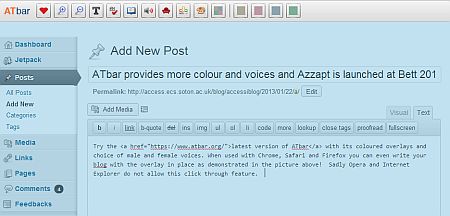
There is usually a way of changing the background colour and font size and colour of a learning environment, either by the settings of the program (as is the case with Blackboard) or via Internet Explorer, Mozilla Firefox and other browsers, if not on the university computers, at least on your own computer. BBC My Web My Way has some easy instructions.  It is also possible to use a plug-in for your browser such as ATBar which offers font magnification, increases line spacing and colour changes – there is also a Moodle add-in called Moodle Block:Accessibility . Guides for using the JAWS screen reader with Blackboard exist and there is a YouTube video on using JAWS with Moodle.

It is important to be aware that although you may be able to navigate around the main part of the system there may be issues with the chat options and forums.  Insist on clear subject lines and easy ways of knowing when the discussion has changed topic.

If you are downloading documents, you may need to change their file format such as PDF to text format.  This is where a specialist service like RoboBraille can help or a general purpose one like Zamzar which offers many more file formats. MyAccessStudies is a service that has a choice of online assistive technologies to use with the uploaded documents.   DropBox allows you to view documents on your mobile or iPad in a chosen app.  Sadly none of these systems will work with diagrams, graphics and maps if you are accessing them with a screen reader and options such as tactile drawings using swell paper could be an alternative and the RNIB offer an accessible images service.

The next Accessiblog will provide links to desktop applications that can help with file format changes and ways of working with graphs and mathematical symbols but as a starter “The Access2Science web site provides articles and links on accessibility of science, technology, engineering, and math (STEM).” with specific links to some of the applications.


Tried and Tested Apps for iPhone and iPad

Here are a few iPhone and iPad apps that have been tried by Cheryl Dobbs, Aaron Smith and myself for the British Dyslexia Association.  Parts of this article have appeared in the Contact Magazine (May 2011).

If you would like to help us to build up a database of useful apps, comments on existing suggestions etc., just send an email to bdatech@btinternet.com. Please remember to include a note outlining why you found the app particularly useful.

Reading

Vod Lite (Free) A Daisy 2.02 reader with text to speech and highlighting. Total playing time is limited to 120 seconds. However, the full version (£15.49), allows unlimited playing.

Web Reader (£1.49 for iphone) and Web Reader HD (£2.99 for ipad) A text to speech application for reading any web page.

Speak it! Text to Speech (£1.49) A text to speech app which works by cutting and pasting text into the app. It comes with natural sounding speech synthesized voices but enhanced versions can also be purchased for an additional fee. Text can be highlighted as it is spoken but the keyboard needs to be displayed for this to function.

Comment: A useful utility with clear sounding speech – £0.59 for additional quality voices. I particularly liked the way the files can be saved as audio files and even emailed from within the application.

Blio (Free) Reads ebooks that are in the Blio bookstore with audio, customised fonts, colour backgrounds and images but also allows access to freely available ebooks and EPUB, PDF, or XPS formats, via iTunes or the web.

Comment:There are sample books available that offer an American voice and other voices can be purchased for £6.99 but not all books can be read with audio. If you have a PDF it will not reflow or allow access to VoiceOver for reading aloud but you can read it with white text on black and zoom in to enlarge the font.

CamScanner (Free*/+ £2.99/Pro £4.99) A portable scanner for your phone. It scans the document, whiteboard etc and saves as a pdf. You can either store this on your phone or, perhaps more usefully, send to email, Dropbox account etc N.B. The free version adds a watermark to the pdf.

Perfect OCR (£2.49): Use your phone to scan a document and convert to OCR. Save as a pdf or e-mail direct from the application.

Image to Text (free) This app allows the user to take a picture of some text which is then transcribed via Optical Character Recognition – saved as text and sent to others via email or read in the Evernote app.  Reading aloud can be achieved by using the built in VoiceOver.

Comments:Works quickly considering the OCR overhead and is accurate if there are clear fonts – filters out images and seems to cope relatively in the sunshine and with shiny surfaces – outputs basic text.  

Eye Reader (£1.49) This app allows the user to hold the phone over a page to magnify and illuminate text using the LED and camera. Not only is the text enlarged, but it can be read in the dark and is very easy to use. There are no set levels and the light automatically comes on when you launch the app. User settings are not available.

Comments: You need to hold the phone steady to get the clearest view and vary the distance to change magnification levels. It does not work so well for white text on black as the light causes reflections. Watch out for battery power with constant use!

Instapaper (£2.99) : A useful facility for saving and reading web documents to read when you are offline. The facility is installed as a bookmark. When browsing the web,  with one tap the document is instantly saved into the App for later access.

Comment: This is a useful facility for those using devices which are not 3G enabled. Items can be moved and saved into different folders.

Writing Support:

Dragon Dictation (Free) This is a lite version of the popular speech to text application but requires web access to function. Text can then be sent direct to sms, email, Facebook etc.

Comment: This app has surprising accuracy considering the fact that it does not require any “training” to use and is free. However, this version lacks text to speech (TTS) support which is a major issue for those with dyslexic difficulties. One possible way round this would be to copy the text into a third party TTS app such as Speak It! Maybe this is something Nuance could consider in a later paid version?

ZenTap Pro: (£1.99) This is an efficient text prediction software application from which emails, texts etc can be sent.

Comment: The layout of the keyboard in this allows for frequently used keys, such as punctuation, to be accessed from the top screen. An arrow key for moving around text – an option infuriatingly lacking in the main iPhone keyboard – is also available. Both of these options have made text production faster regardless of whether I make use of the prediction facility it was bought for.


iThoughts for iPhone and iThoughts HD for iPad. (£5.49) A mind mapping app. Can export directly to e-mail, Dropbox etc.

Writing and Drawing:

Pages (£6.99) This app provides a bite sized version of a range of word processing tools for both iphone and ipad.  A range of templates are included, shapes, tables and photos can be imported with a tap and documents saved or exported.

Comments: There are a range of note-taking apps around but this is a simple but elegant app which allows basic documents to be produced. Although documents can be directly exported to email, iTunes etc – the option to export directly to other facilities such as Dropbox etc would be useful. As a word processor, it is an easy product to learn to use but will await the time when a product appears on the market which might include an assistive toolbar providing facilities such  a spell checker and an easily accessible means of text to speech support.

Internet Search

Dragon Search (Free) Instead of typing in text when you want to search the Internet – just use speech.

Comment: again lack of text to speech facility but since the text required for a web search is limited this may not prove to be such an issue.

Google Search (free) Just speak into this app to search the internet (requires internet access).

Comment: this seems quicker than Opera and Safari browser searching and you can just say the words.  Sometimes the microphone goes mute and needs resetting.

Organisation

Dropbox (Free) If you use more than one computer you may have used Dropbox to save and move documents between them. The facility is now available as an App allowing you instant access to your documents wherever you have web access.

Comment: This facility is excellent not only for back up and sharing files but also for transferring files such as photos between e.g. ipad and computer without the need to sync. Additionally, it is also a means of being able to use TTS fairly simply with documents such as pdf, word etc. Transfer the document to Dropbox and then open it via Web Reader to hear the document read aloud.


Daily Reminders (Free/59p*): A very simple notification pad for daily tasks.

Comment: If you use Outlook efficiently then this app will seem very basic to you. However, it is this simplicity which makes it a really useful tool for setting reminders for the tasks you need to do each day and one day ahead.

Evernote (Free) A very easy to use web service that links notes from the computer and iPhone or iPad whether they are text, audio or images – store them on one machine and they will automatically update on your portable device.

Comment: Allows you to keep your jottings safe and organised into notebooks – they can be tagged and easily found again. Recordings can be made, photos taken and all can be shared via email – they are automatically dated and a location can be noted to help the memory!  The free Image to Text app automatically sends text files to Evernote that can be read with VoiceOver.


Free and Open Source Software to aid those with Visual Impairments

This blog comes from a talk given at the 4Sight Bradbury Centre in Sussex linking up our work with open innovation and open source Assistive Technologies on the JISC funded REALISE project as well as free software to access the web and a few links related to the use of mobile phones.

Portable USB Pen drives for use with Windows operating systems can run light weight programs with an accessible menu.  Examples are:

Accessible RSS News Reader
Accessible BBC iPlayer
Accessible Podcatcher
Accessible BBC Live Radio
Clock for time and reminders
Calendar for diary and events
Accessible Gutenberg Library for free books
Accessible Internet Radio Tuner
Accessible PDF for reading PDF files.
Internet Explorer Appearance Editor
Disk Explorer for working with files and folders.

More portable apps can be found on the JISC RSC NE Scotland site

Mobile phone apps are appearing all the time for Android phones such as eyes free, talkback & Digital Talking Timer.  The iPhone has built in accessibility features such as VoiceOver and  Zoom but there are many more apps such as  Eye Reader and Voice of Daisy etc.  There are blogs about Android Access and many more about the iPhone.

Nokia and Blackberry also have their accessibility sites.  Nokia phones use the Code Factory and Nuance systems of screen reading and magnification.  Blackberry uses Oratio and the freely available Clarity Theme.  There is also the mobile forums advice about phone option

Further Resources
AccessWatch
Screen Magnifiers

Links for Print to Audio that provide free software include

Web Access options

  • Firefox – Fire Vox for web page reading aloud, Readability to remove clutter,
  • ATbar – a cross browser toolbar with text enlargement, colour, font and line spacing changes, text to speech, dictionary and spell checker.
  • Web2Access – to learn more about which interactive and social networking sites are accessible.
  • Webanywhere listen to web pages being read aloud just by adding your chosen web address to the edit box on the site.
  • RNIB Accessibility toolbar for Internet Explorer
  • LowBrowse for Firefox – delivers web pages in a text friendly way with text to speech options and colour, font changes etc.
  • Black Window freeware – Enhance visibility and reduce distractibility of other programs

If you have any ideas for programs that you think would help your use of the computer please add them to the ideas already being discussed on the JISC funded REALISE project

A collection of Study Strategy apps

I have collected  a series of open source, free, portable,  mobile online and commercial software programs that might help with studying – they are not specifically assistive technology items – this is where I like the idea of mainstreaming assistive technology!  The commercial  products mentioned, in particular the text to speech programs, tend to offer much more than just speech synthesis.  They have spell checker, note taking support, scanning and OCR, dictionaries and much more.  Therefore think of the commercial text to speech products as having features that should be included in many of the other slides!  Download a Study Strategy Technologies for HE Microsoft Word document version of the slides below to see the main points and web addresses.

Here are the slides that can be downloaded from SlideShare. They will be discussed on EASI Webinar on 23/02/2011.

Web browser accessibility extensions plus a move into apps

The five most commonly used browsers all have extensions or add-ons that can help you surf the web.  Here are some suggestions for each one.

firefox

The Mozilla Firefox extensions include:

  • Color That Site! - changes the background colour of web sites
  • Text to Voice 1.05 – adds text to speech to a site
  • Colorfultabs – makes your tabs appear with different colours
  • Wikilook -  provides meanings for words when selected
  • Dictionary.com – a dictionary button that also provides access to a thesaurus, translations and spell check
  • Google toolbar – which has a spell checker, time, calculator, dictionary and many more add-ins and also works with Internet Explorer
Internet Explorer
Chrome
The Chrome extensions include:
Opera
The Opera add-ons include:
Opera also has its own e-book reader and built in spell checker.
Safari
Safari Add-ons are new and the built in Safari Reader strips out surrounding clutter.
Finally don’t forget the ATbar will work with any browser and provide text enlargement, a dictionary, spell checking, text to speech and a way of changing colours and fonts and citing web pages.
When it comes to apps we are exploring iPad, iPhone and Android ones. iPhone and iPad apps are all available from the Apple app site and  study type apps that are useful ones include:
  • Dragon/Google Voice  Search
  • Dragon Dictate
  • Web Reader – $1.99
  • My Homework
  • Evernote

The Android Apps include:

  • WalkyTalky – spoken walking directions from Google Maps and Intersection Explorer
  • EasyNote
  • Google Search
  • Digital talking timer
Links to more of these types of resources will follow shortly.

Fix The Web launched to focus on e-accessibility with ATBar reaching 2m users!

Citizens Online has launched an innovative project called Fix the Web with the rather ambitious aim of (at least partially) addressing e-accessibility issues from a grass roots perspective, making use of social media for network effects.

The idea is that disabled people can report faulty websites and requirements for pieces of software which people with technical skills can address. Web fixing tools may be the solution along with emails to web developers. If this can be achieved on a large scale then change is possible!

At this stage input is required from both disabled people and techies on the scope of the project and on developing the website.

Further information can be found at fixtheweb.wordpress.com

The ATBar has recently reached over 2 million users. 2m users stats

AccessTools v2 – accessible menu for portable apps.

The latest version of the AccessTools Menu thanks to Chris Phethean who writes:

AccessTools menuThis year has seen a new version of the AccessTools menu system enter beta testing after another summer of development. It offers all the features of version 1 with the ability to tab through and use short cut keys for menu items, enlarge and change the font colours and background as well as launch programs directly from the pen drive without installation.  There is a new feature offering different languages and the ability to hide programs that are not required.  There are also easy links to Windows built in accessibility features such as the magnifier, onscreen keyboard and narrator text to speech.

In response to some issues which came to our attention during the testing of version 1 with regards to .NET runtime compatibility on older PCs, we decided to branch away from the original C# code and recreate the menu experience using Java. Whilst the Java program still requires a runtime environment to be installed on each machine, we are able to include this in the AccessTools package to be placed on the USB flashdrives. With the help of an open source tool, JSmooth, it was possible to wrap the Java Executable into a Windows .exe file, and in this process ensure that the Java Runtime placed on the USB drive will be used to launch the menu. At the cost of a slightly larger package size, this should ensure that most Windows PCs, whether they have Java installed already or not, will be able to run the menu.

Other issues were encountered with the Java version. Because Java programs run inside a virtual environment, getting them to communicate with the Windows Assistive Technologies is difficult. In order for screenreader use, the Java Access Bridge would need to be installed on any computer on which this functionality is required. Due to the portable nature of this project, this was not a suitable solution, and so we had to limit the visual appearance of this version (Java AWT was used instead of Swing, and the interface limited to mainly buttons).

Big improvements have been made under the hood of the new version of AccessTools. Due to the similarity of C# and Java, much of the code could be re-used with fairly small amounts of tweaking. This process allowed the previous code to be thoroughly reviewed, refined and improved, before any new code was even added to the system. The complicated nature of the downloader in Version 1, for example, has been simplified by ensuring that each application offered will be in the same format (a single zip file), which means we can offer a much more streamlined process of downloading and installing new applications.

Finally, we owe many thanks to Fx Software who have kindly allowed us to redistribute their software as part of this project. This means we can add this wide range of incredibly useful assistive technologies to the open source tools provided in version 1.

Last posting from Tokyo includes HCR 2010

Odaiba exhibition areaIt must be one of the largest  Home, Care and Rehabilitation Exhibitions in the world with over 80,000 attendees on the day we attended and over 20,000 stands.  Most were related to home care, mobility aids, furniture and very little about communication or use of the computer to aid daily living such as shopping on line or reading using technology.  However, here are a few items that caught the eye.

Under the auspices of the National Institute of Information and Communications Technology (NICT) Rumi and I saw an HTC windows system mobile phone with Japanese text to speech with highlighting for scanned pictures.  The text to speech has a little bit of a way to go to make it useful for dyslexic users but the phone could be set in a cradle above the printed page and used in a similar way to the Intel Reader – obviously not as powerful but the recognition rate was good.

There was an example of mobile PSP devices being used in cinemas and the ability for deaf users at home to read captioning related to what is seen on the screen.  The health and safety video I saw also had the captioning displayed alongside a signer.  At present the system – web-shake has just been used for DVDs available in Japan.  The captioning is sent over the internet with time stamps that correlate with those on the video and the user can access the system via their pc or mobile phone.

pen and blackberryRCAST developed a mobile phone-based electronic personal profiler for care and support information mainly for use with the elderly who are supported by a range of carers.  This now has the addition of a digital pen used on the forms that carers fill in – the information is transferred via PC when the pen is docked and linked to the server.  The contents of the client’s notes are sent to a manager and stored with appropriate information being sent onto the next carer, via her mobile phone, 30 minutes before she makes her visit.  This means that there is no break in service, each carer learns about the client’s needs and also their interests such as the reason they are feeling low today may not be due to a physical issue but rather the fact that their favourite football team lost a match!  Similar systems using the digital pen have been used in UK in the past and more recently with midwifery teams in Portsmouth with the use of Blackberries.

switchSlightly less computer based was the use of a synthetic rubber material from gomuq that is used to make pen grippers, stop rulers sliding and stick onto switches – it really had the most amazing grip on all surfaces!

The day ended with a chance to play with the latest Robot developed in the deparment – it had recently walked from Tokyo to Kyoto at around 3 kilometers an hour but when you are walking alongside it that speed feels incredibly fast as it is so tiny! It carries two ordinary AA Panasonic battiers on its back and pulls another ten in a small cart!  robot

More technology strategies from RCAST, University of Tokyo

Pomera note takerDuring the week I have been introduced to students, eminent professors and company directors all the while seeing technologies being used in many different ways.  From a simple note taker called a Pomera that has a normal sized keyboard but folds into a pocket book sized device using SD cards and 2 AAA batteries to the latest Anoto digital pen used for research and assessments.

The Anoto pen captures writing on the specialist paper containing a gird of dots that allows the actual timing of writing and way the characters are made to be captured.  The data is transferred to the computer in XML format and used in Excel as well as specialist program that also has the video of the process allowing an analysis of the speed of writing from start to finish as well as the way each letter or character is written.  Anoto writingtransfer anoto files

This process allows for some very accurate assessments of handwriting skills both in schools and when using copying exercises in Psychology tests.

ihorn for quiet speechAs a Speech Therapist I was fascinated by a wonderfully simple ihorn – not an iphone app or speaker but a device for allowing a person who had lost their voice to be heard by someone else.

Finally, when it comes to portable scanning the little Fujitsu Scansnap copied a batch of papers for Optical Character Recognition and text to speech use in no time – straight onto an iPhone for listening to as an Mp3 file! fujitsu scansnap

Technologies abound at the New Education Expo 2010 in Tokyo

screen on cupboardA visit to Expo 2010 was a fascinating experience with the most beautiful wooden classroom furniture, learning aids and relaxation activities jostling for space amongst the very latest in cameras, scanners, visualisers, printers and software. The amount of pamphlets, shiny brochures and papers also made one realise the challenge  for Japan to develop digital text books for schools let alone developing text to speech that will read across the page, down the page, find the gaps for meaning and work out the differences that occur between over 6,000 characters, some which represent concepts and others that represent sounds.sample newspaper

Mitsumura Tosho Publishing Co Ltd had on show the most beautifully illustrated reading book that provided the student with not only the text version but a CD with real speech tracking the text, individual character support, dictionary and worksheets.   It was an example of the student being able to work independently through the book whereas many of the other digital books on show were for the teachers to work from whilst the children had the original paper based textbook.

There were many cameras and visualisers on show for use with white boards of all descriptions.  The one that caught my eye was a small inexpensive iPevo that could be used with zoom and various levels of colour contrast. Automatic focus and extremely portable and only requiring a USB computer connection.

The white or smart boards all tended to be of the fixed variety or on large stands but one system called the eBeam (available in UK) is very portable and could be fixed to most surfaces, linked to a laptop and provide many of the interactive opportunities offered by the larger boards.

blackboard screen for TVWhere schools have very large televisions there is the chance to turn them into blackboards – a little retro for some but it provides another opportunity for a hands on experience!  Izumi were offering this protective cover for very large screens.

There were little memo pads like the Boogie Board mentioned in the last post – the one that I would have liked was called the Mamemo TM1 and some amazing 3D camera technology.  I tried to capture a flavour of the 2D experience changing into a 3D.  The skeleton literally leapt out from the screen at all angles and it was hard to capture the result!  (well that is my excuse for my poor technololgy skills – the movie that resulted was 31MB so sorry only a picture of a static skeleton! ) skeleton